
Your shopping cart is currently empty.
How to Access Verba Collect
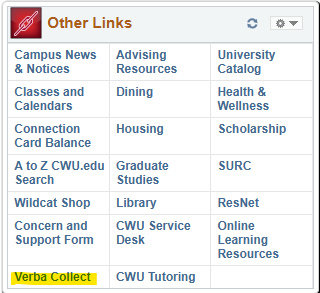
Instructors can access Verba Collect in a variety of ways. There is a link in MyCWU in the Other Links section of the homepage, you can click the link in the announcement emails sent out every quarter, or you can click the link below.
Please note, while you can access Verba Collect at any time, instructors will only be able to edit their classes or course materials when adoptions open, and may make their selections until the adoptions deadline.
How to Submit Adoptions Using Verba Collect
Step 1: Log in to Verba Collect and choose from your list of assigned “open” courses.
- If you don’t see a course listed, you can search for it and assign yourself as the instructor.
- Course information is updated on a regular basis, recent changes may take some time to appear.
- If another instructor is assigned to a course you are now teaching, or your course is not listed, please email us at textbooks@wildcatshop.com so that we may assist you.
Step 2: Select the sections you want to submit adoptions for, then click NEXT.
- Keep in mind: selecting multiple sections submits the same adoptions for every section you chose. If you need different textbooks for different sections, select only one section for now. You can submit the other sections after you complete the first.
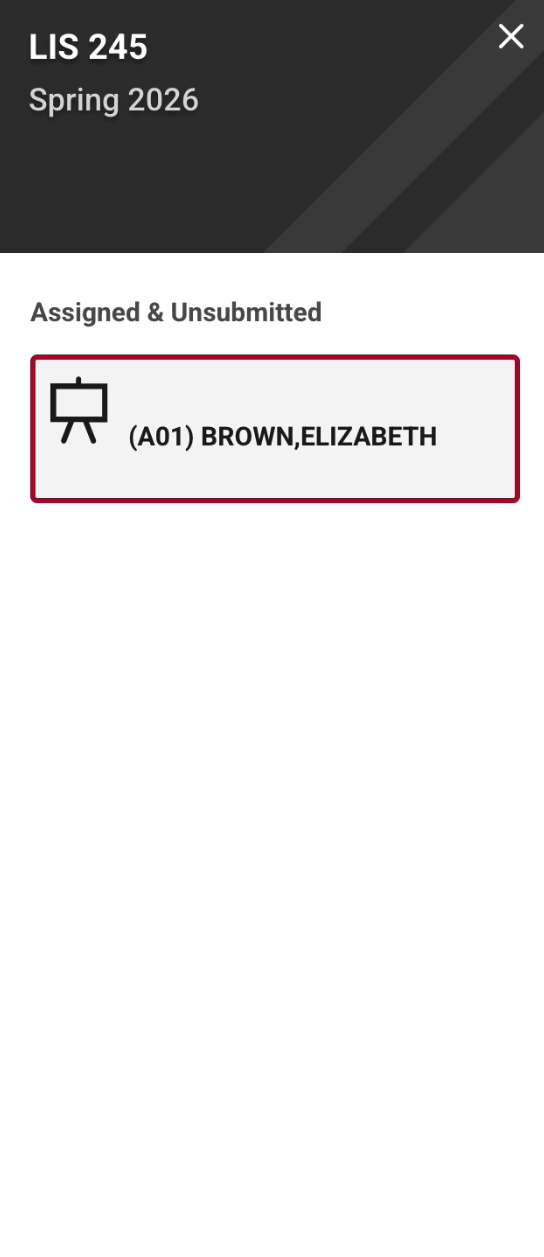
Step 3: After selecting the course you want to work on, choose one of three options:
- Yes, I need to add books, OER materials, or supplies.
- No, I do not need to add books, OER materials, or supplies.
- No, this section isn’t offered
If you choose “No, I do not need to add books, OER materials, or supplies”, you may add a note to the bookstore in the Leave a Note box before submitting your adoption. If you will be posting materials to Canvas, or supplying materials to students directly, please mention that in your note.
By selecting this option, you are indicating there is no cost associated with this section and you are not providing materials to students in another way.

Adding Previously Adopted Materials
To add materials that have been adopted previously, use the COPY ANOTHER ADOPTION tab.
- If the course has been offered before, titles from the most recent prior term will appear.
- You can also choose a different term, course, or section using the dropdown menus and clicking APPLY.
- While browsing terms, courses, and sections, you can decide whether to limit results to your courses only or view other section adoptions by using the MY SECTIONS ONLY FILTER. Selecting ALL SECTIONS and then clicking APPLY allows you to view other section adoptions.
- Each course material title appears on its own “card” with key details about the item.
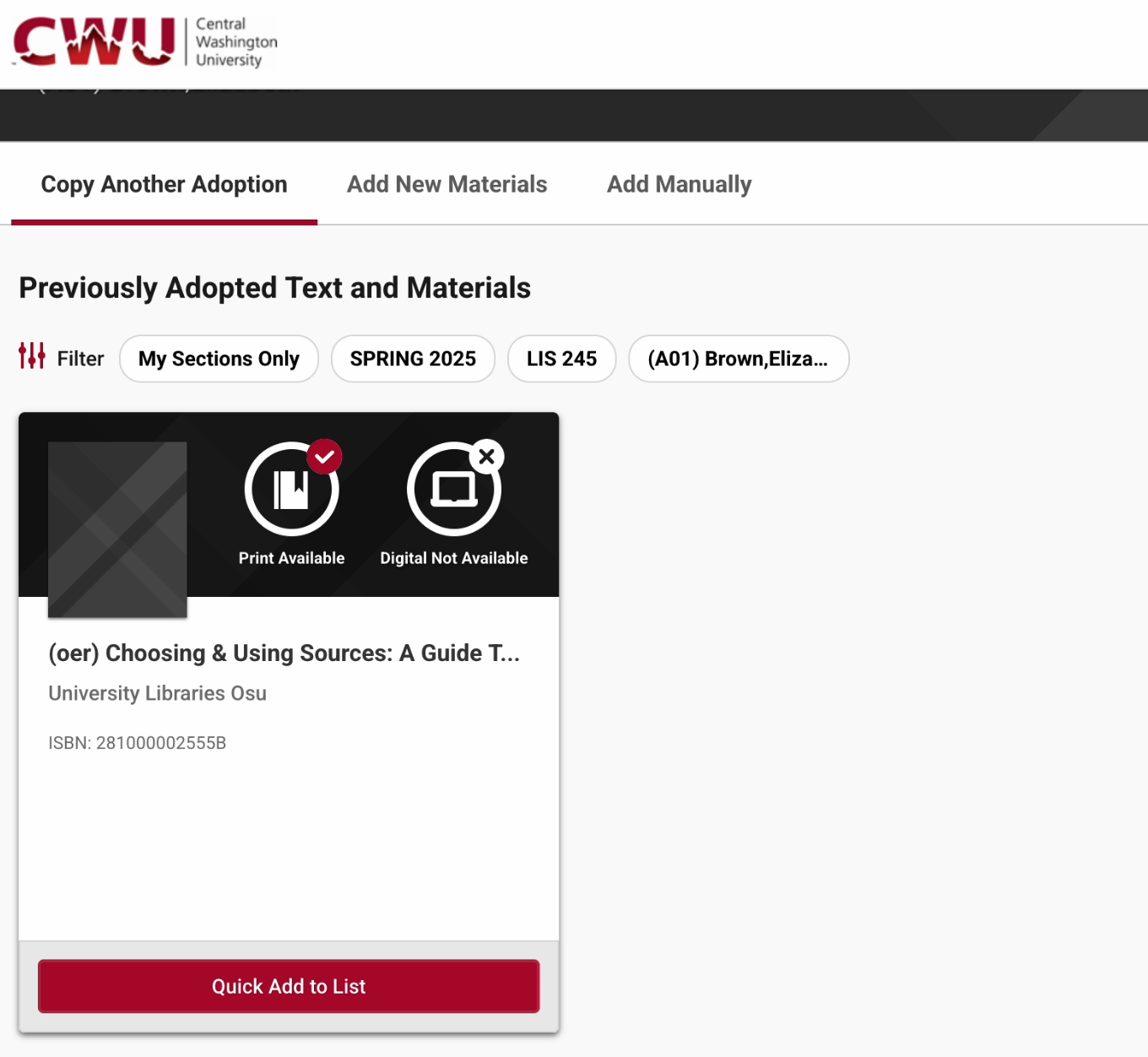
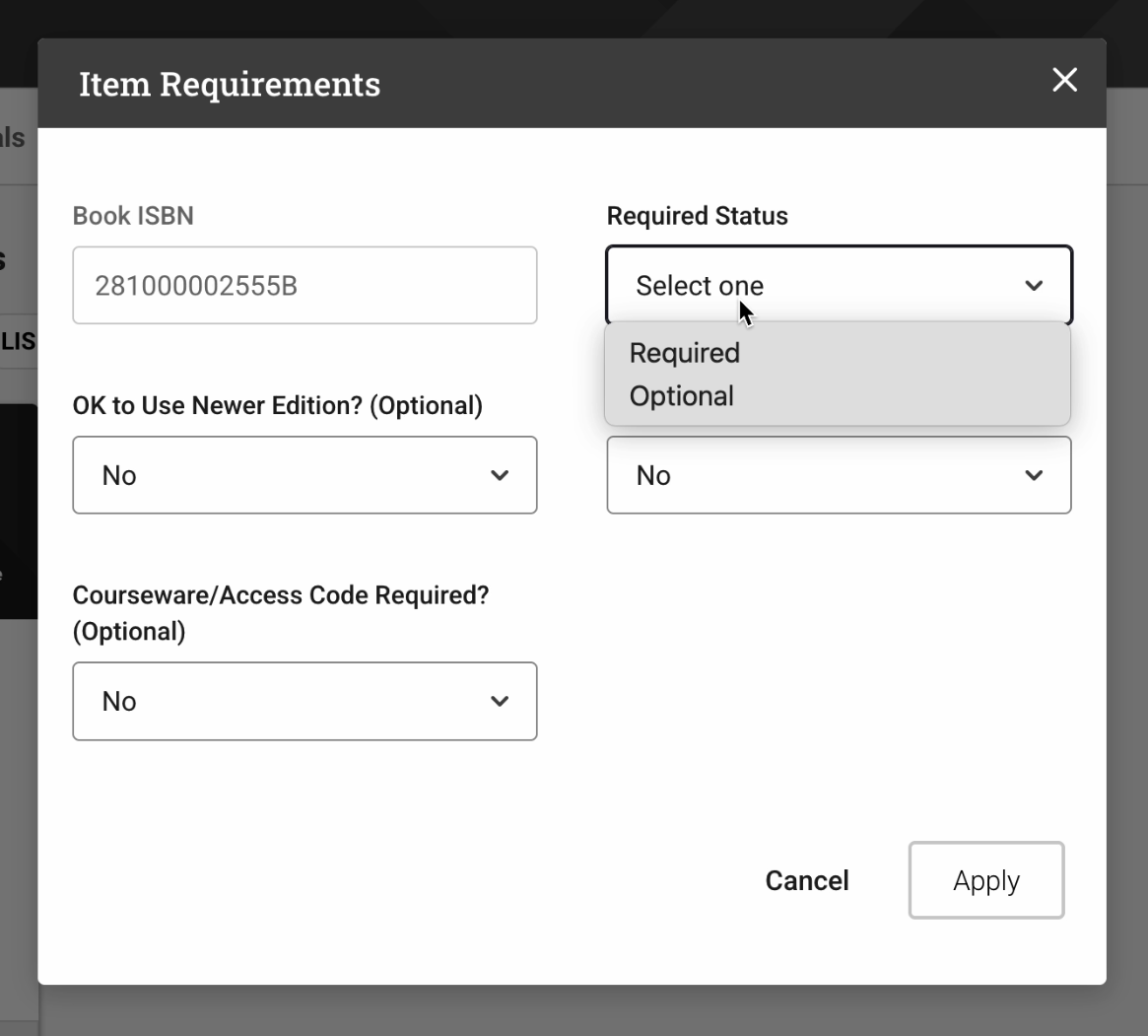
To add an item from the list, click the QUICK ADD TO LIST button next to that item, then finalize your item requirements and answer a few questions, and click APPLY.
- If alternative editions are available and you’d prefer one of those, click QUICK ADD TO LIST and continue as usual.
- Please note we cannot guarantee availability of older editions. If you select an older edition for your course, we will contact you if we are unable to source enough copies.
After you add an item, the selected materials dropdown will appear automatically to confirm it was added. Repeat these steps for any additional items you want from the PREVIOUSLY ADOPTED TEXT AND MATERIALS screen.
If you need to remove items from your current adoption, click the REMOVE button in the dropdown.
When your selected materials list is complete, click REVIEW & SUBMIT from the dropdown in the upper-right corner.
Adding New Materials
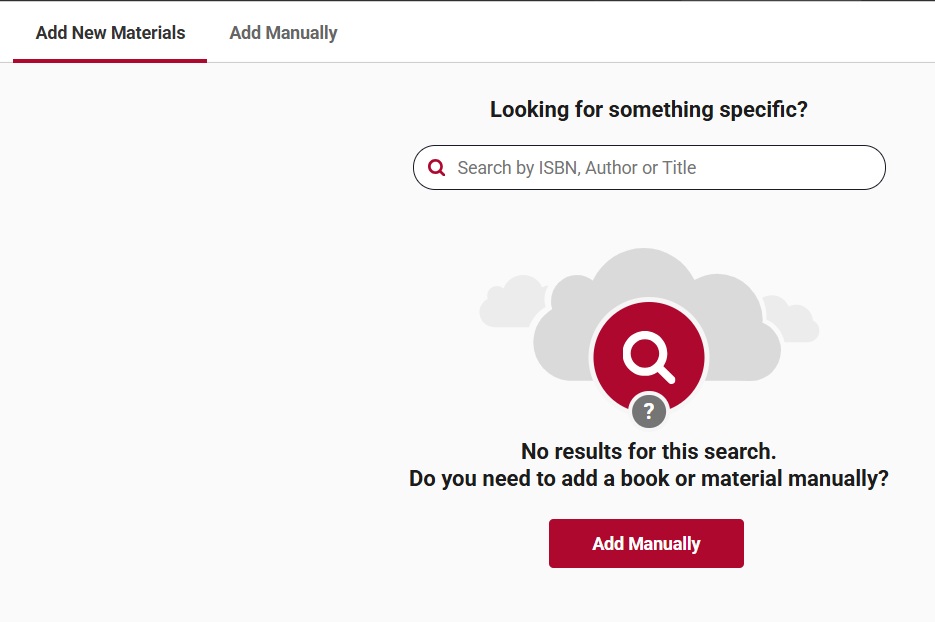
To add a title you have not adopted previously, click ADD NEW MATERIALS.
- Then search by ISBN, author, and/or title and select from the results shown below.
- Adding new materials this way follows the same process described above in the “Adding Previously Adopted Materials” section.
NOTE: Verba Collect uses Bowker Books in Print©, a bibliographic database, to populate item information. It is not fully accurate and does not include every book, so please confirm you are selecting the correct item before moving forward.
If you can’t locate the book you need, adjust your search criteria or click ADD MANUALLY. Then click ADD BOOK and enter all title details.
Coursepacks & OER
To let the bookstore know you will be using a course pack:
- Select ADD MANUALLY
- Click ADD COURSEPACK to begin
- Enter the proposed course pack title
- Click ADD COURSEPACK to submit
- Please note that completing this step does not create a course pack order; you will still need to work with the campus copy center to create your course pack each term.
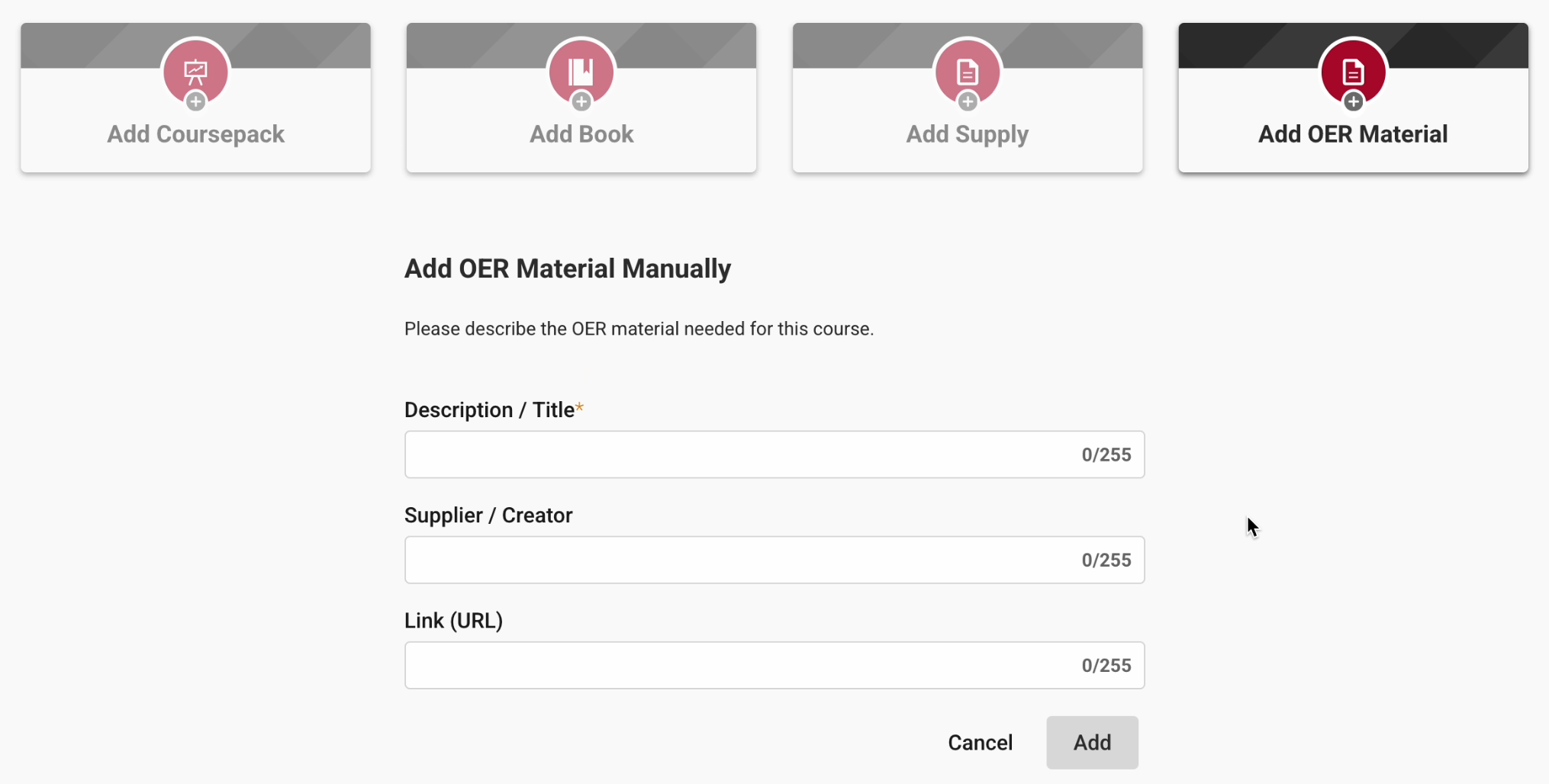
To add general supplies and/or OER items, click ADD SUPPLY and/or ADD OER MATERIAL.
- Select ADD MANUALLY
- Click ADD SUPPLY or ADD OER MATERIAL
- At a minimum, include a description of the supply/OER item—more detail is always helpful, including delivery method if OER.
- When finished, click ADD.
After you have added all materials, hover over REVIEW AND SUBMIT in the top-right corner, and then again in the dropdown to complete the final step of the adoption process.
Finalize and Submit Your Adoptions
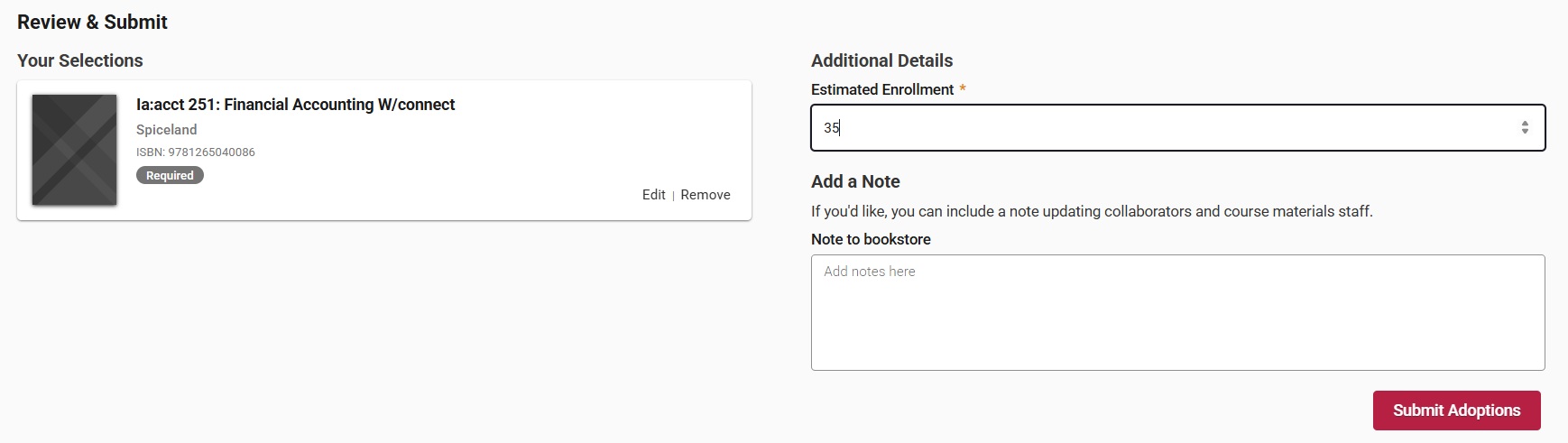
Before submitting, provide a few key details for the bookstore. If enrollment is not already filled in, enter your estimated enrollment. You may also add any special notes, questions, or other details you want to share with the bookstore—such as the order you plan to use multiple titles in. This step is optional.
When everything is complete, click SUBMIT ADOPTIONS. The course will then move to your completed courses list.
For official directions, including images, from Verba themselves, please use this link: https://success.vitalsource.com/hc/en-us/articles/8457029154839-How-to-Adopt-Course-Materials-in-Verba-Collect
Additional Questions?
Our team at the Wildcat Shop is happy to help! Reach out to us by emailing textbooks@cwu.edu, calling us at 509-963-1311, or stop by the store and chat with us in person.
Education should be about learning—not stressing over textbooks and course materials.